

How to switch Sunflower AI subscriptions
Step-by-step walkthrough for changing your Sunflower AI plan or billing cycle in the dashboard, including annual billing, plan tiers, and optional coupon codes.
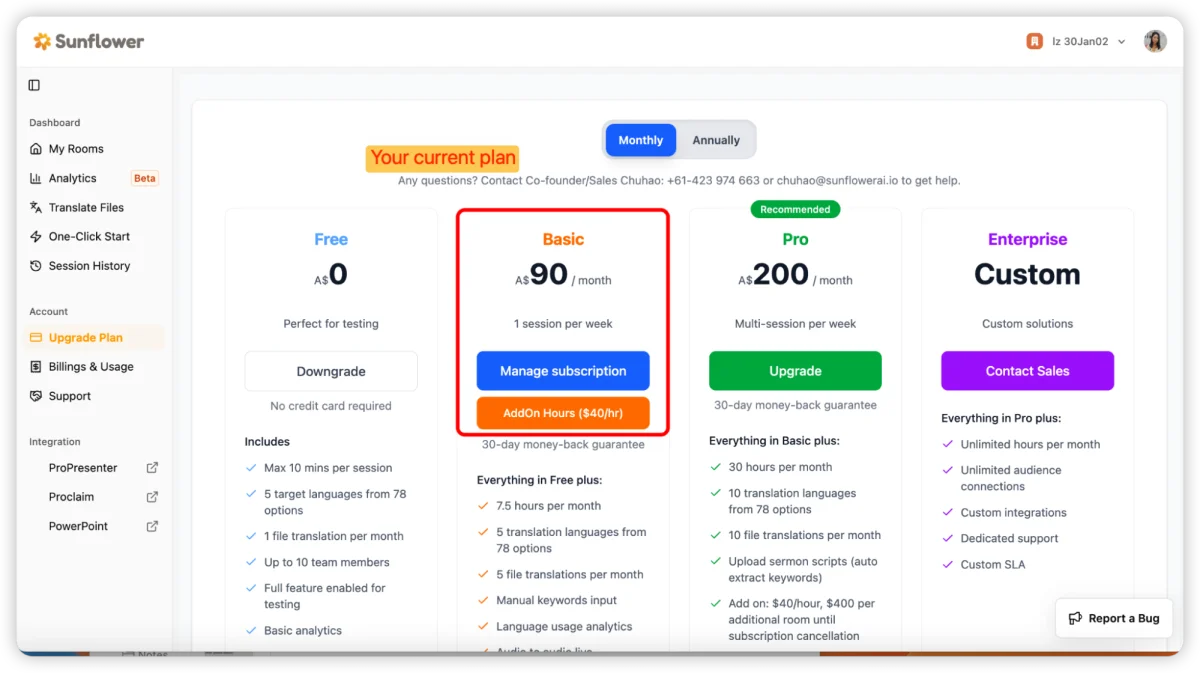
Need to move from monthly to annual, step down to Basic, or change tiers? You can do it yourself in the Sunflower AI dashboard — no need to email support. This guide walks through each screen.
What you’ll need
- An active Sunflower AI account
- Access to the email you used to sign up (for receipts after checkout)
Step 1: Sign in and open “Upgrade Plan”
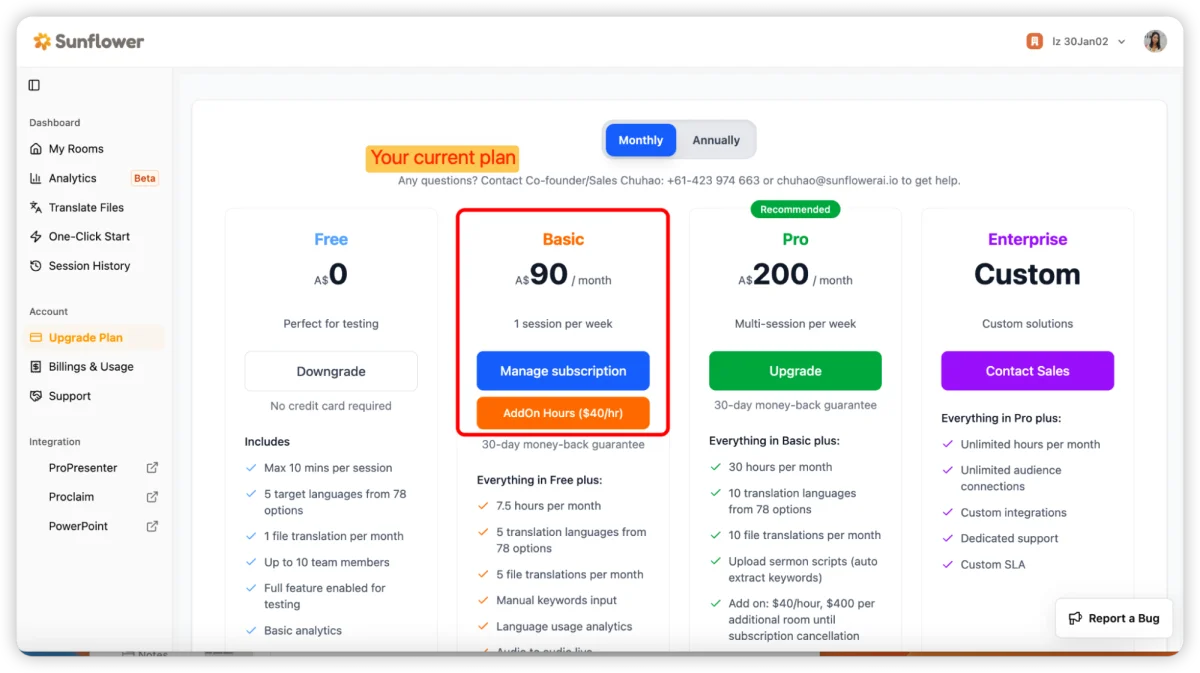
Sign in at beta.sunflowerai.io, then go to the Upgrade Plan page from your account settings.
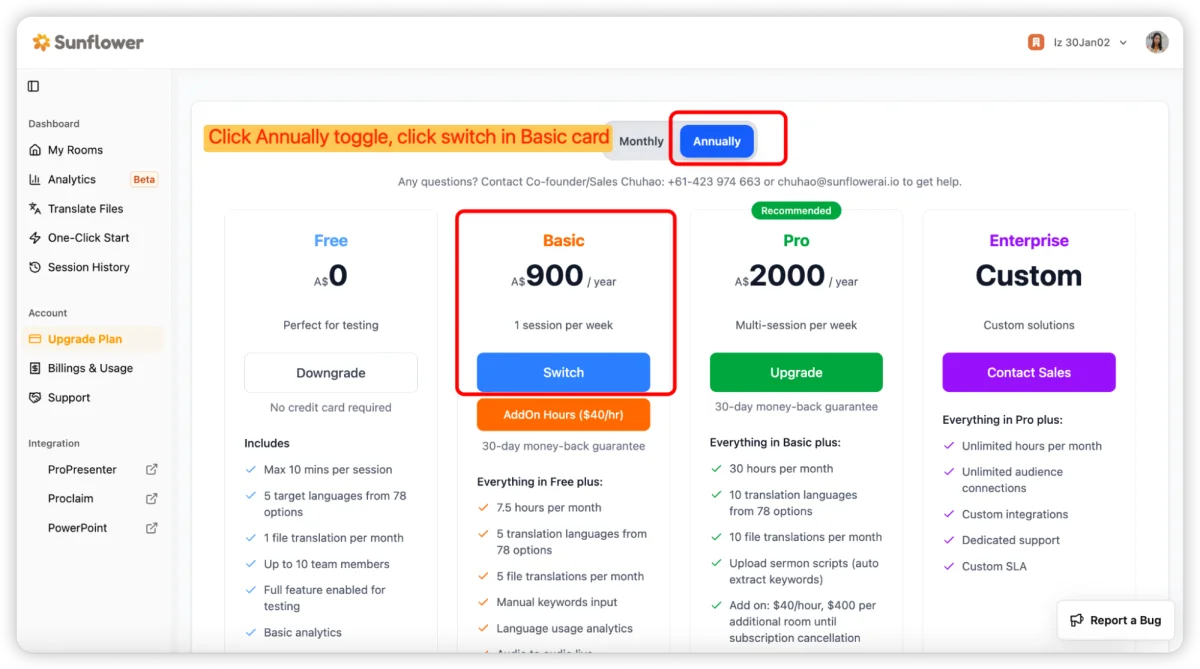
Step 2: Toggle to “Annual”, find the Basic card, and click “Switch”
On the plan comparison, switch the billing toggle to Annual, locate the plan card you want (for example Basic), and click Switch.
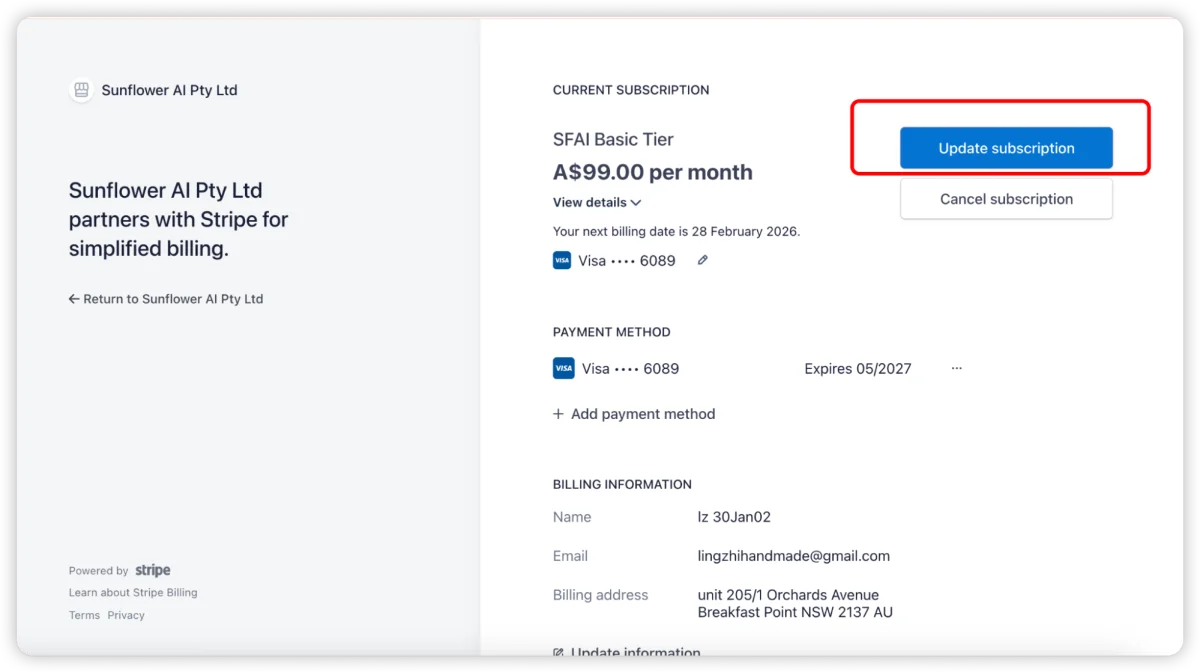
Step 3: Click “Upgrade Subscription”
Confirm you want to change plans by clicking Upgrade Subscription.
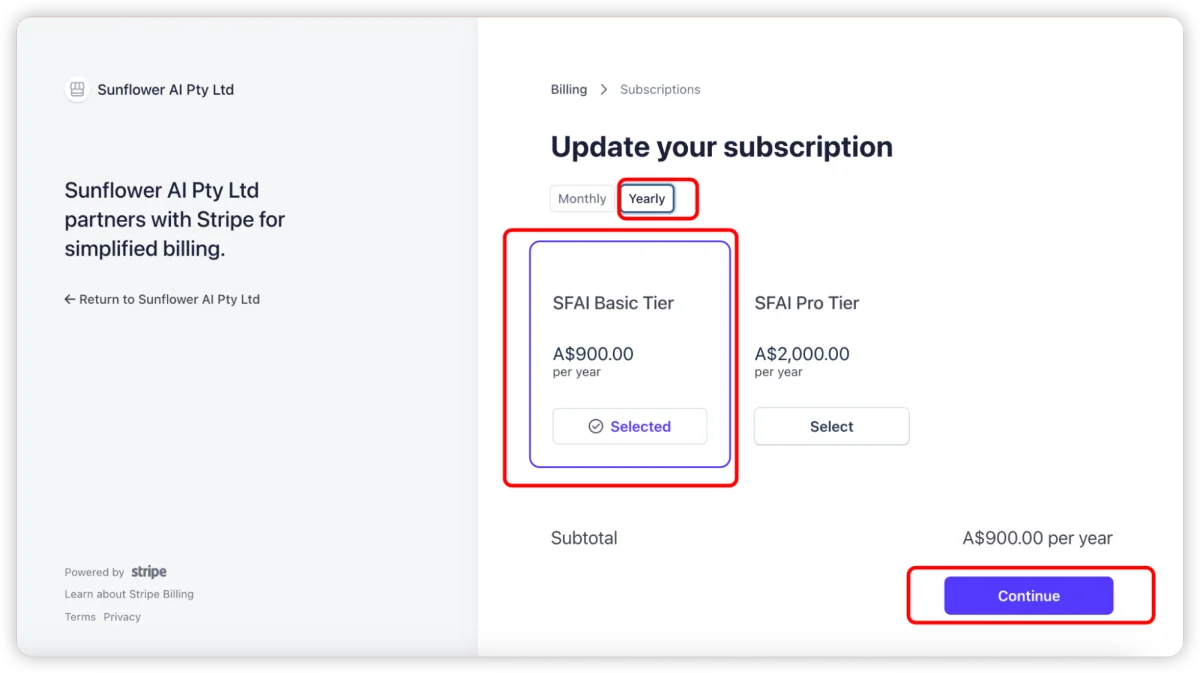
Step 4: Toggle to “Annual” and select “BASIC”
In the checkout panel, set billing to Annual and choose BASIC (or whichever tier you are moving to).
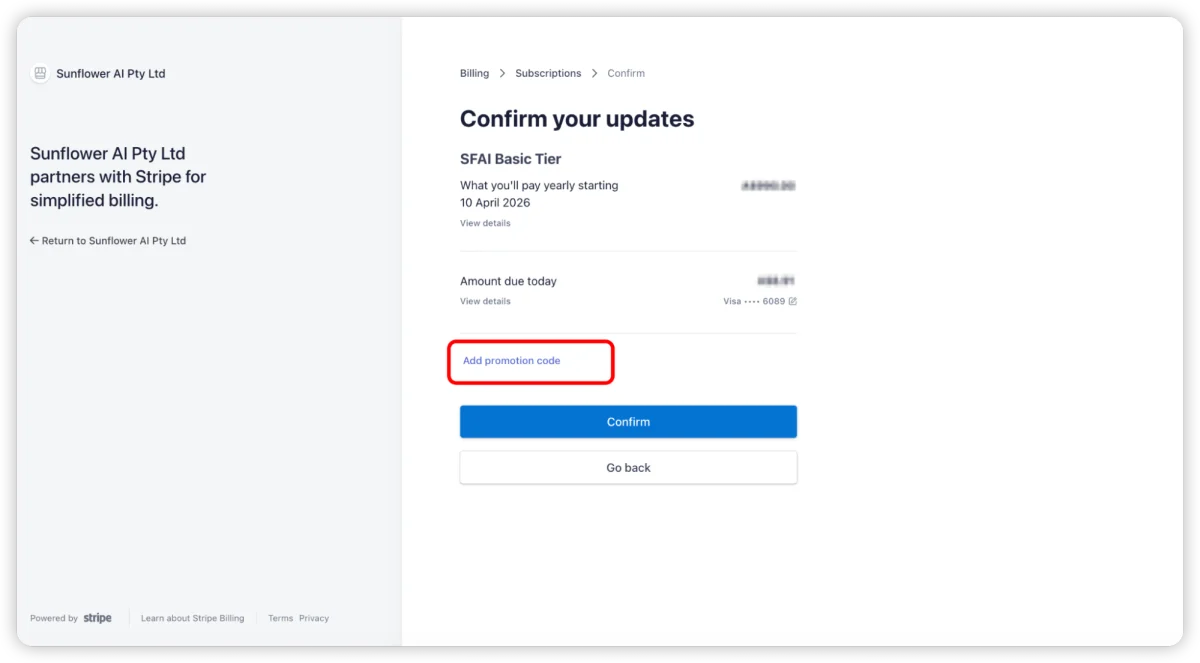
Optional: Enter a coupon code
If you have a promotion code, paste it into the coupon field before you confirm.
Step 5: Review the final amount
Before you pay, the checkout shows a full price breakdown. The prorated credit for your current billing period depends on how many days are left in the cycle — so the total you see here is the real number you will be charged.
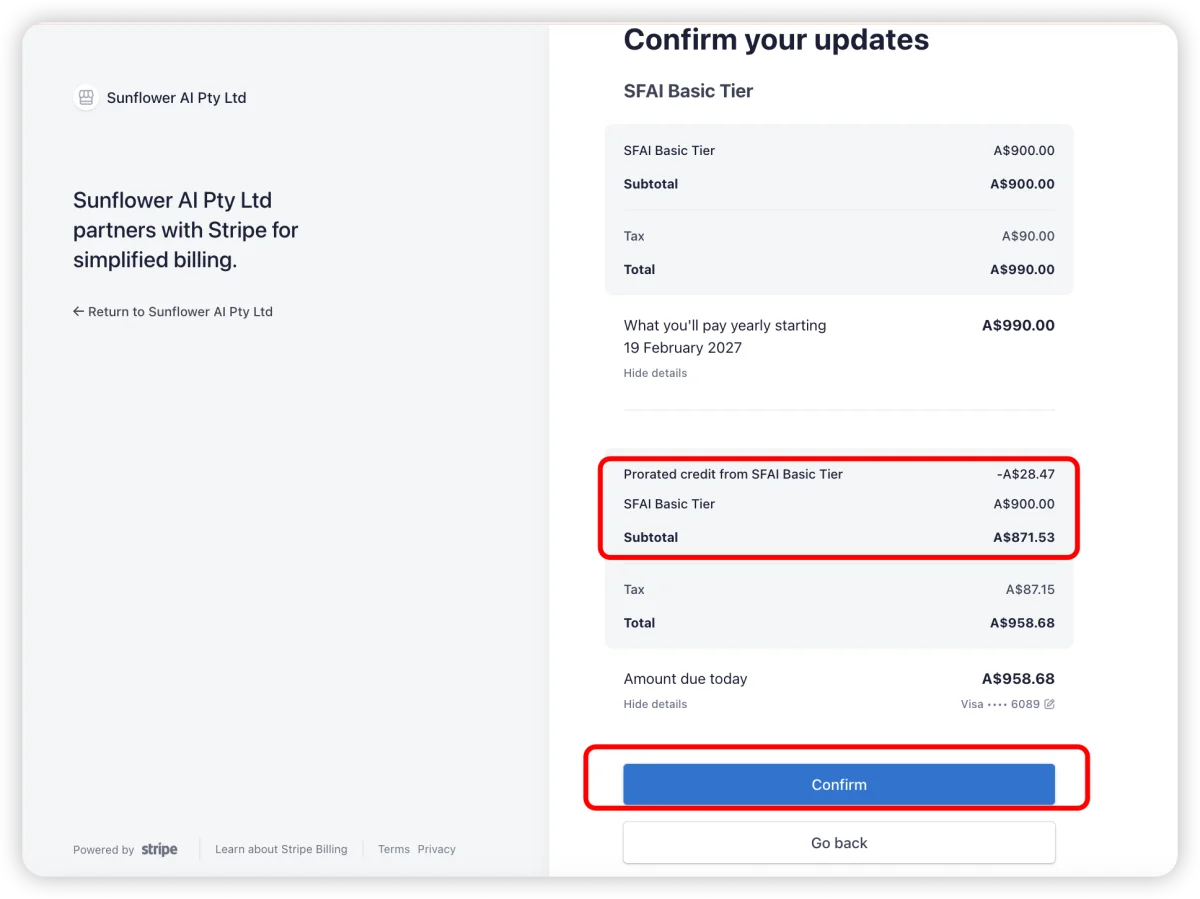
Step 6: Click “Confirm”
Click Confirm to complete the change. Your card is charged, your account receives the new tier’s usage credit, and a receipt and invoice arrive in your email shortly after.
Need a hand?
Contact support@sunflowerai.io if anything on the checkout screen does not match what you expect.